
⌁
Junk File Cleaner
Identify temporary files, caches and other unnecessary clutter that can consume storage.
Get Advanced System Repair Pro—a powerful PC cleaner trusted by millions of users worldwide. Find junk files, unnecessary startup items, privacy traces and common Windows issues with one clear PC cleaning toolkit.
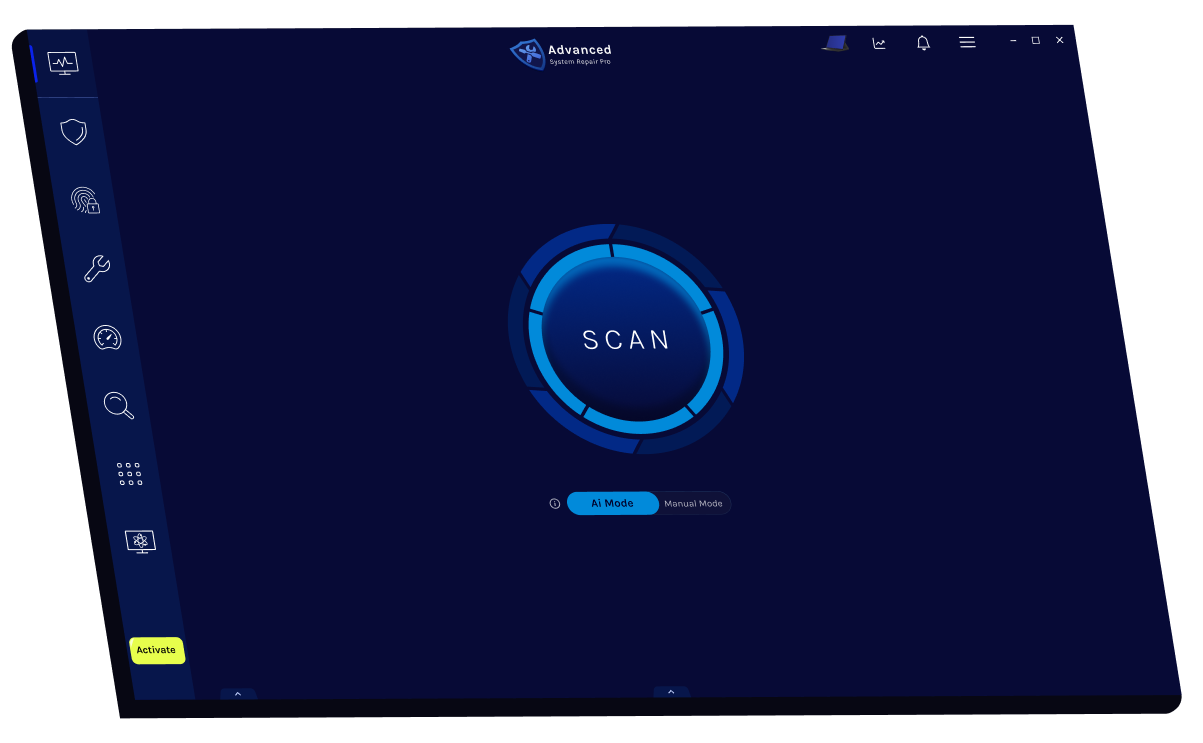
A good PC cleaner should help explain what it finds and give you practical tools for maintaining Windows.
Identify temporary files, caches and other unnecessary clutter that can consume storage.
Review programs that launch with Windows and may contribute to a slow startup.
Find browser traces, cookies and selected activity records you may wish to remove.
Check for common system problems that ordinary PC cleaning tools may overlook.
You stay in control from the first scan through the final cleanup.
Check your Windows computer for junk files, performance problems and privacy traces.
See the categories detected and understand what the PC cleaner recommends.
Select the items you want addressed and give your PC a cleaner starting point.
Applications, browsers and Windows create temporary data during everyday use. Startup programs and background tasks can also accumulate. A regular PC cleaning routine helps you understand what is using storage and what may be affecting performance.
Illustrative interface preview. Results vary by computer.
Explore 14 detailed guides covering PC cleaning, Windows performance, safety, malware and routine maintenance.
Why regular computer maintenance matters.
GUIDE 02How security cleanup differs from junk removal.
GUIDE 03A performance-focused Windows routine.
GUIDE 04Features that make a cleaner useful.
GUIDE 05How scanning and cleanup work.
GUIDE 06Common symptoms of accumulated clutter.
GUIDE 07A safe scan-and-review workflow.
GUIDE 08What to look for in cleaning software.
GUIDE 09Safety checks and warning signs.
GUIDE 10Two tools with different jobs.
GUIDE 11When cleanup helps—and when it cannot.
GUIDE 12How cleaners identify unnecessary files.
GUIDE 13Compare control and convenience.
GUIDE 14Choose a sensible maintenance schedule.
Clear answers about cleaning and optimizing a Windows computer.
Start with a free diagnostic scan and review the results before making changes.